

How to Use Claude Code: The Complete Beginner’s Guide (2026)
Claude Code beginner's guide: what it actually is, how to install it, and the explore-plan-execute workflow that makes it reliable.

Most developers first hear about Claude Code and use it like GitHub Copilot — type a request, get code back, paste it in. It works, kind of. But they’re treating a software engineering agent like a smarter autocomplete, and the results reflect that.

Claude Code is not an autocomplete tool. Once that clicks, everything about how you use it changes. This guide covers what it actually is, the Claude Code setup that makes it reliable, and the one workflow pattern that separates “AI sometimes helps” from “AI handles the hard parts while I review.”
It’s not autocomplete — it’s an agent
When you use Copilot, it predicts what you’re about to type. It’s reactive, line-by-line, and it only knows what’s in the file you have open. Claude Code works differently.
You give Claude Code a task in natural language. It reads relevant files in your project, decides what changes to make, writes code, runs your tests, reads the output, fixes failures, and keeps going until the task is done. You watch. You approve commands before they run. You redirect if it goes off track.
It works by looping: reason about the problem → pick a tool (read a file, run a command, edit code) → observe the result → decide the next step. Repeat until done. It’s the same process a junior developer would use if you dropped them into an unfamiliar codebase and gave them a task.
Because it lives in your terminal rather than your editor, it works alongside any editor you already use — VS Code, JetBrains, Vim, Emacs, or none. It doesn’t care.
Claude Code vs Cursor vs Copilot
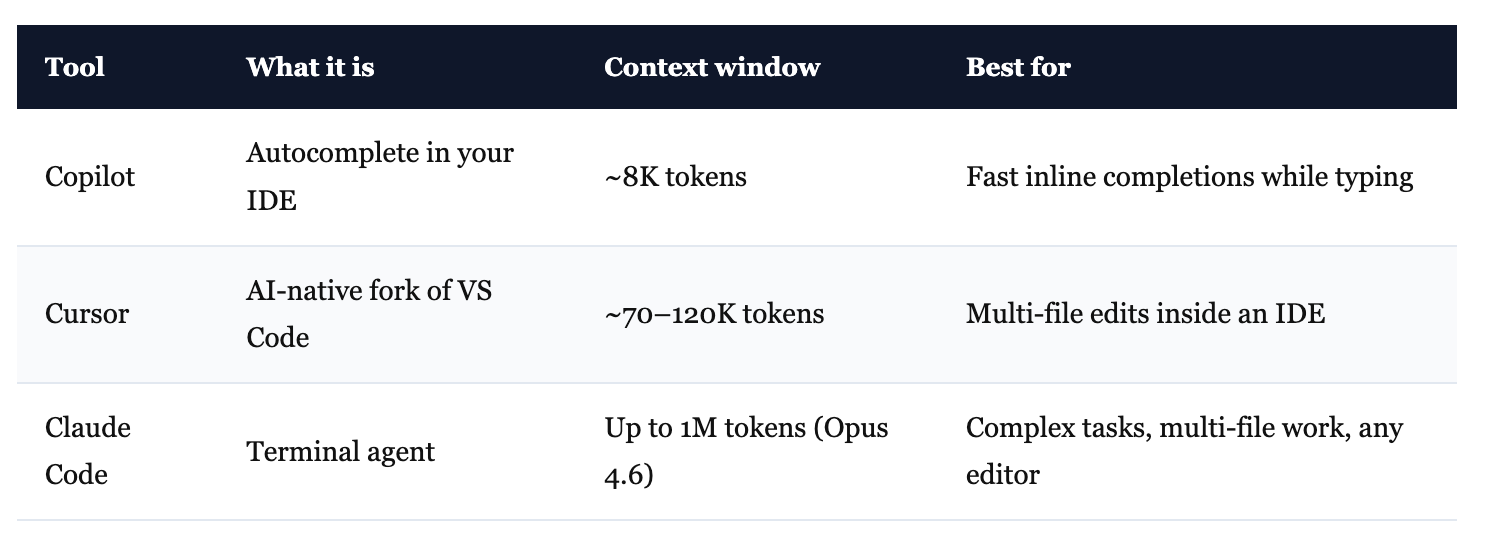
The context window gap is what matters most in practice. At ~8K tokens, Copilot can’t hold much of your project in mind at once. Claude Code with Opus 4.6 can hold your entire codebase. Developers using Claude Code on complex tasks report roughly 30% less code rework compared to Cursor — a larger context means fewer mismatched assumptions.
Many professional developers use both: Claude Code for complex multi-file work, Copilot or Cursor for inline help while typing. It’s not a replacement. It’s a different tool for a different kind of job.
How to Install Claude Code
As of version 2.1.15, npm installation is deprecated. Use the native installer — it updates automatically in the background.
macOS or Linux:
curl -fsSL https://claude.ai/install.sh | bashmacOS via Homebrew:
brew install --cask claude-codeWindows (PowerShell):
irm https://claude.ai/install.ps1 | iexWindows via WinGet:
winget install Anthropic.ClaudeCodeRequirements: macOS 13+, Windows 10 1809+ (or WSL), Ubuntu 20.04+, 4 GB RAM.
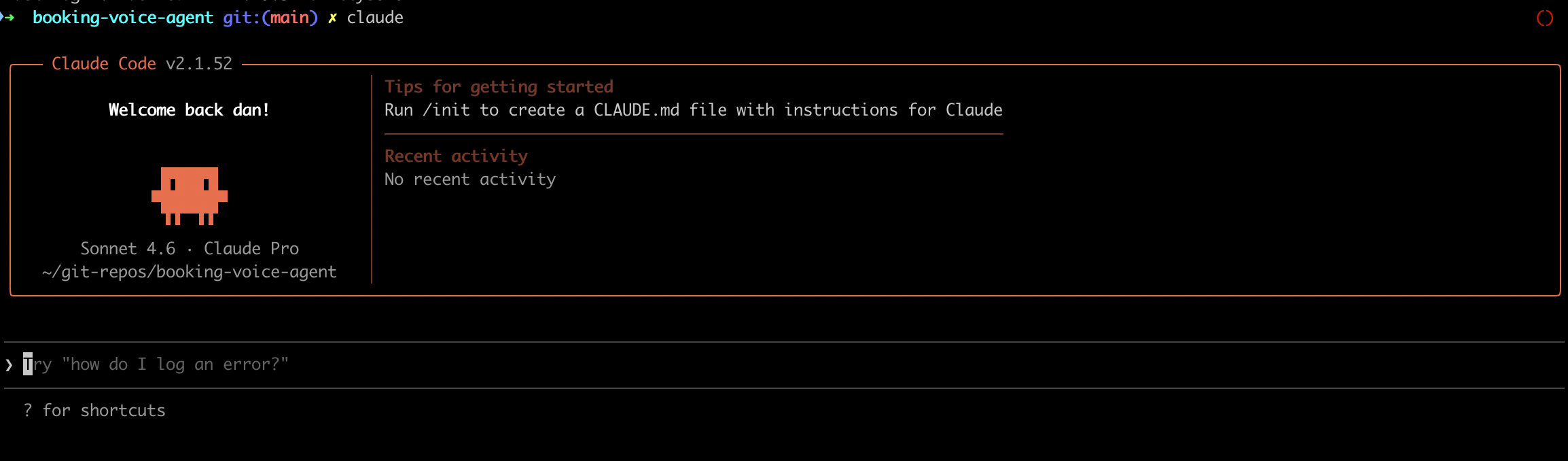
Once installed, navigate to any project folder and run claude. Your browser opens for authentication — sign in with your Anthropic account or API key. After that first login, claude works in any project folder you navigate to.
Claude Code Setup: Start With CLAUDE.md
Every time you start a new Claude Code session, Claude begins with no memory of previous sessions. It doesn’t know your stack, your naming conventions, or that you’re using pnpm instead of npm. Every session starts cold.
CLAUDE.md fixes this. It’s a plain text markdown file in your project root. Claude reads it automatically at the start of every session. Think of it as the onboarding doc you’d write for a new engineer joining your team — you write it once, it works forever.
To create one, run /init. Claude scans your project files and generates a starter CLAUDE.md tailored to your tech stack. Then edit it to make it accurate.
Here’s what a solid one looks like:
# Project: ShopFront
Next.js 14 e-commerce app with App Router, Stripe, Prisma ORM.

## Code Style
- TypeScript strict mode, no `any` types
- Named exports, not default exports
- Tailwind utility classes, no custom CSS

## Commands
- `pnpm dev`: Dev server (port 3000)
- `pnpm test`: Jest tests
- `pnpm lint`: ESLint + Prettier

## Architecture
- /app: Next.js App Router pages
- /components/ui: Reusable UI components
- /lib: Utilities and shared logic
- /prisma: Database schema and migrations

## Rules
- NEVER commit .env files
- Always use pnpm, not npm
- Run tests before committing
Keep it under 150 lines. A bloated CLAUDE.md wastes context — Claude processes the whole file every session.
One shortcut worth knowing: type # Always use pnpm, not npm mid-conversation and Claude saves it to memory instantly. You don’t have to stop and edit the file every time you want to add a rule.
The Claude Code Workflow That Actually Works: Explore → Plan → Execute
Here’s why beginners get inconsistent results: they jump straight to “do this thing” without giving Claude time to understand the codebase. Claude makes reasonable assumptions, writes code that technically runs, and the result doesn’t fit how the project is actually structured.
The fix is a four-step pattern. A few extra minutes upfront. It saves you from debugging code that looks right but isn’t.
Step 1 — Explore
Before writing anything, ask Claude to understand first.
“Explore the src/auth/ directory and explain the authentication flow, listing all files and dependencies.”
This is read-only. Claude maps your project — how files relate, what’s doing what, where the relevant logic lives. It’s building a picture before touching anything. Skipping this step and going straight to implementation meaningfully increases the chance of code that doesn’t fit.
Step 2 — Plan
With the codebase understood, enter Plan Mode. Press Shift+Tab until you see the plan mode indicator — Claude becomes read-only and can’t make changes. Then ask it to plan:
“Create a detailed implementation plan for adding OAuth2 support. Write it to plan.md.”
Read the plan. Edit it. Add constraints you care about. Approve it only when you’re satisfied.
Think of it like a surgeon explaining the procedure before they operate. A few minutes reviewing the plan is far cheaper than debugging a misguided implementation halfway through.
Step 3 — Execute
Approve the plan and let Claude implement it step by step. Ask it to commit after each logical chunk:
“Implement phase 1 of the plan. Commit when done.”
Work on a branch, not main. If Claude goes off course, press Escape to interrupt and redirect.
Step 4 — Verify
“Run the test suite and fix any failures.”
Claude runs your tests, reads the output, and fixes what broke. Review the diff, merge when you’re satisfied.
Writing Claude Code Prompts That Actually Get Results
The formula: action verb + target file + tech stack + constraints.
❌ “Add a contact form.”
✅ “Add a contact form in React with Zod validation in src/components/ContactForm.tsx, using strict TypeScript and Tailwind CSS, following the patterns in src/components/LoginForm.tsx.”
Same request. One gives Claude enough context to get it right on the first try.
One prompt, one task. Asking for five things at once produces inconsistent results. Keep each prompt to a single task. If you have five things to do, do them in sequence.
Reference existing code whenever possible. Saying “follow the pattern in src/api/users.ts” is more useful than any written description of your conventions. One concrete example beats 100 words of explanation.
Ask Claude to ask questions first. Before a complex task: “Before planning the authentication system, ask me questions about the requirements.” This surfaces hidden assumptions before Claude writes a single line.
Managing Context: The Skill Every Claude Code Beginner Needs
As your conversation grows, Claude’s quality quietly degrades. It starts ignoring rules from your CLAUDE.md, asks questions you already answered, or produces code that contradicts what it said 30 messages ago. This is the most common silent failure mode.
Context windows are finite. As they fill, earlier information gets deprioritized. The signs are subtle until they aren’t.
The fixes:
/compactafter roughly 30 exchanges — compresses your conversation 60–70% while keeping what matters/clearwhen switching to a completely different task — fresh start, no old baggage/contextto monitor your token usage before it becomes a problem
Keep MCP server connections to 3–4 maximum. Each connected server eats into your context budget — more than 20K tokens of MCP overhead measurably degrades performance on coding tasks.
One session, one objective. Build this habit early.
What to Use Claude Code For First
Debugging. The #1 use case. Paste the raw error message and full stack trace — never summarize it. Add git context when you can: “Here’s the diff from the last 3 commits that broke the tests. Find the regression.” With full context from the first message, most bugs resolve in under 3 exchanges.
Navigating an unfamiliar codebase. Inherited a project? Joining a new team? Ask: “Explain the main data flow and folder structure.” Then: “I want to add feature X — explore possible approaches starting with the simplest.” Anthropic’s data teams report engineers onboard 80% faster when a solid CLAUDE.md is in place.
Refactoring. Multi-file work is where Claude Code genuinely outperforms IDE tools. Builder.io used it to refactor an 18,000-line React component that no other AI tool could handle — renaming across every import, reorganizing the directory structure, keeping tests green. Always on a branch. Always incremental commits.
Writing tests. “Write failing tests for a function that validates email addresses, covering edge cases.” Claude reads your existing test files, matches your framework and patterns, and writes tests that fit what you already have.
Claude Code Pricing — Which Plan to Start With
Claude Code requires a subscription or an API key. No free tier.
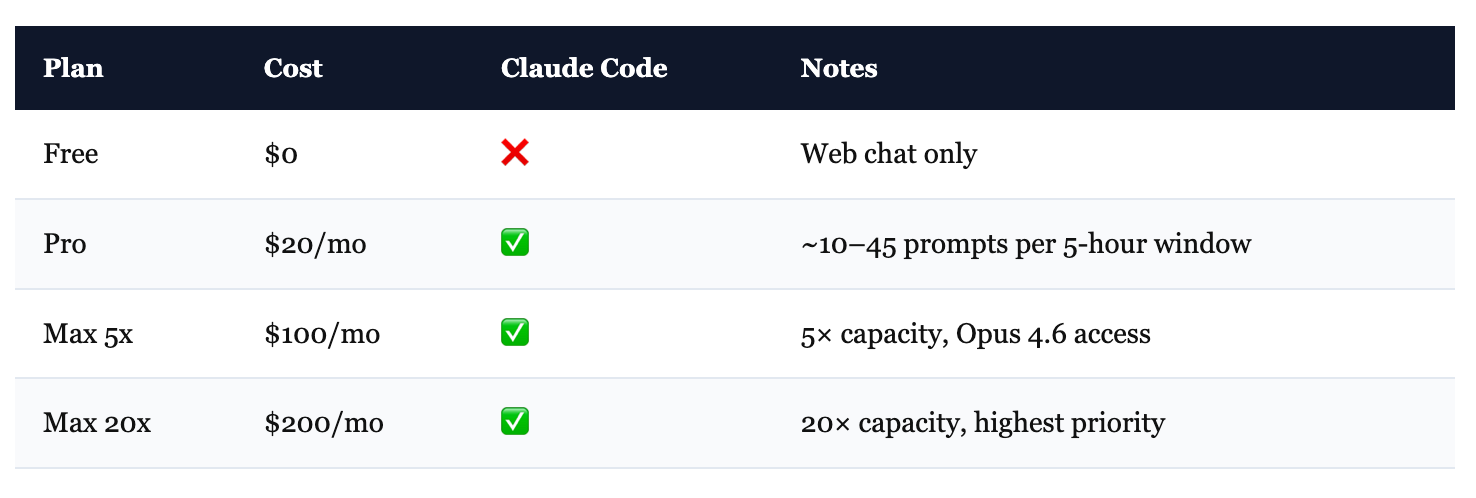
Start with Pro. $20/month is enough for daily use on real projects. You’ll hit the rate limit occasionally during heavy sessions — not daily.
One thing to know: usage is shared between Claude web chat and Claude Code. Both draw from the same pool. If you’re heavy on both, you’ll burn through it faster.
Upgrade to Max when you’re hitting limits daily, or when you need Opus 4.6’s 1M token context window for large codebases. The average developer on pay-per-use API spends about $6/day — for heavy use, Max is much better value.
Start Here
Claude Code rewards preparation. A CLAUDE.md that describes your project accurately, the explore-plan-execute pattern before any significant task, and context discipline — these three habits are the difference between “AI that kind of helps” and “AI that handles the hard parts.”
Start with Pro. Run /init on your first project. Try the explore-plan-execute workflow once before you form other habits.
The tool reached $1 billion in annualized revenue within 6 months of launch. That’s not marketing. It’s engineers finding it useful enough to keep paying for it.
The best advice I have is to document your code, your models and your architecture. Do it in the code. Claude will have no issues understanding what to do because if you follow clean architecture patterns, DDD and document source code correctly and evolve it together with the code, humans will also have no issues understanding what the app does and how it works.